


Remote work gives companies access to talent beyond the limits of a single office. However, it also creates a practical challenge: how do you provide, protect, maintain, and recover company devices when employees may be working across different cities or countries?
Without a clear device management process, laptops can remain untracked, security updates may be delayed, and former employees may retain access to sensitive company information. Employees may also lose productive time waiting for equipment, technical support, or replacement devices.
A remote device management strategy helps companies control these risks. It brings policies, technology, logistics, security, and employee support into one consistent process.
What is Remote Employee Device Management?
Remote employee device management is the process of providing and managing the equipment employees use outside a company office.
These devices may include:
- Laptops and desktop computers
- Smartphones and tablets
- Monitors and docking stations
- Headsets, keyboards, and other accessories
- Security keys and authentication devices
- Routers or other connectivity equipment
Device management covers the full employee lifecycle, from preparing equipment before an employee starts to recovering or securely wiping it after they leave.
It also includes software installation, access control, maintenance, technical support, security monitoring, and asset tracking.
Why Device Management Matters for Remote Teams
In an office, an IT team can configure a laptop, resolve technical problems, or recover equipment directly. For a distributed team, each of these activities requires more coordination.
A strong device management system helps your company achieve several goals.
1. Protect Company Information
Remote devices frequently access employee records, customer data, internal communications, financial documents, and other confidential information. If a device is lost, stolen, compromised, or improperly returned, that information may be exposed.
The National Institute of Standards and Technology recommends securing both company controlled and personally owned devices against the threats expected in remote working environments.
2. Give Employees a Productive Start
A new remote employee should not spend their first week waiting for a laptop or requesting access to basic software.
A coordinated process helps ensure the device arrives before the start date, contains the correct applications, and provides access based on the employee’s role.
3. Maintain Visibility Over Company Assets
When devices are distributed across several locations, companies need to know:
- Which assets they own
- Who currently holds each device
- Where each device is located
- Which operating system and applications it uses
- Whether security controls are active
- When the device needs maintenance or replacement
Without a central inventory, devices can easily become outdated, misplaced, or forgotten.
4. Support Compliance Requirements
The information stored on a company device may be subject to data protection, employment, tax, or industry requirements. These obligations can vary according to where the company, employee, customer, and data are located.
A documented device management process helps demonstrate that the company has taken reasonable steps to control access and protect information.
Company Issued Devices Versus Personal Devices
One of the first decisions is whether employees will receive company equipment or use their own devices.
1. Company Issued Devices
Company issued devices give employers greater control over configuration, security, software, and access.
Advantages include:
- Consistent security settings
- Easier software deployment
- Clear ownership of the equipment
- Better visibility over device condition
- Simpler access removal and data deletion
- A more consistent employee experience
The main challenges are purchasing, international shipping, customs, repairs, storage, and device recovery.
2. Bring Your Own Device (BYOD)
Bring your own device (BYOD) policy allows employees to use personally owned laptops, phones, or tablets for work.
This model can reduce equipment and delivery costs, but it creates additional privacy and security concerns. Personal and company information may exist on the same device, while the company has less control over software, updates, and physical access.
The Center for Internet Security recommends limiting access to personally owned devices and carefully separating company information from personal information.
If personal devices are permitted, the policy should clearly explain:
- Which devices and operating systems are accepted
- Which company systems employees may access
- What security software must be installed
- Whether company information can be stored locally
- What the company can monitor
- What happens to company data when employment ends
- Whether employees receive an equipment allowance
- Who is responsible for repairs or replacement
3. A Combined Model
Some organizations use company issued devices for roles with access to sensitive information while allowing personal devices for limited or temporary work.
Access should reflect the level of control the company has over the device. A managed company laptop may receive broader access than an unmanaged personal phone.
How to Manage Devices for Remote Employees
1. Create a Remote Device Policy
Start with a written policy that explains how devices should be requested, used, protected, maintained, returned, and replaced.
The policy should cover:
- Device ownership
- Acceptable use
- Approved applications
- Password and authentication requirements
- Storage of company information
- Software updates
- Reporting lost or stolen equipment
- Employee privacy
- Repair and replacement responsibilities
- Return procedures when employment ends
The policy should be easy for employees to understand. Employees are more likely to follow requirements when they know both what to do and why it matters.
2. Standardize The Device Catalogue
Offering too many device models makes procurement, maintenance, and support more complicated.
Create a limited catalogue based on role requirements. For example, software engineers may need more processing power than employees who mainly use browser based applications.
Each device profile can specify:
- Approved manufacturer and model
- Processor and memory requirements
- Operating system
- Standard applications
- Security settings
- Accessories
- Expected replacement period
Standardization also helps your IT team troubleshoot problems more efficiently because fewer device configurations are in use.
3. Maintain a Central Asset Inventory
Every company device should receive a unique asset number and be recorded before it is sent to an employee.
The inventory should include:
- Asset identification number
- Device type, brand, and model
- Serial number
- Purchase date and value
- Warranty information
- Assigned employee
- Employee location
- Delivery date
- Device condition
- Installed management software
- Return or disposal status
Update this inventory whenever a device changes hands, is repaired, replaced, returned, or retired.
4. Configure Devices Before Delivery
Employees should receive a device that is ready for work. Wherever possible, complete the configuration before shipping or use automatic enrolment to apply the required settings when the employee first connects.
A standard configuration may include:
- Operating system updates
- Full device encryption
- Endpoint protection
- Automatic screen locking
- Password requirements
- Multifactor authentication
- Approved communication and productivity applications
- Restricted administrator privileges
- Secure access tools
- Automatic backups
- Remote management and wiping capabilities
CISA identifies employee training, strong passwords, multifactor authentication, and current software as core cybersecurity practices for businesses.
5. Use Device Management Software
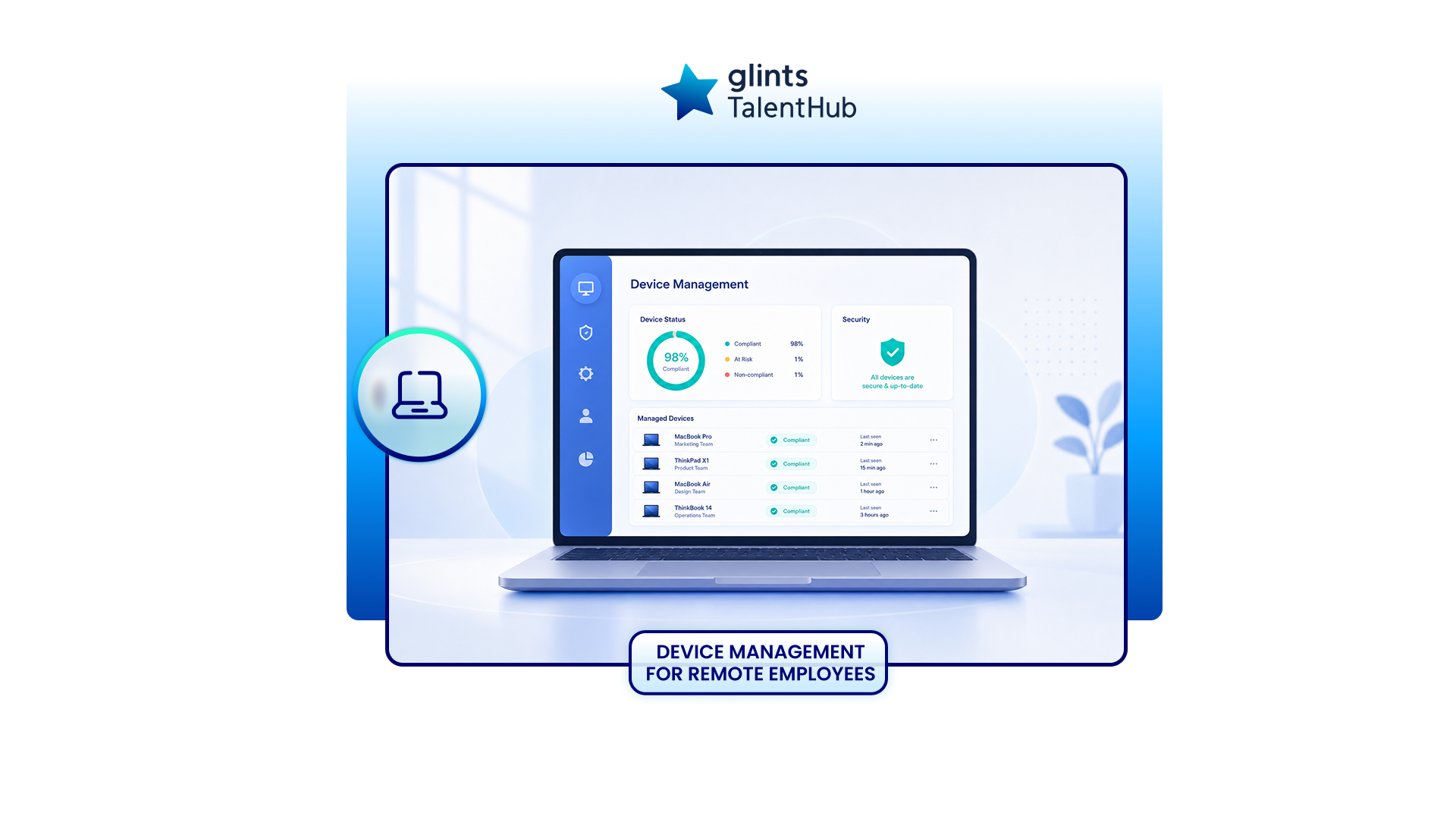
Mobile device management or unified endpoint management software allows an IT team to manage company devices remotely.
Depending on the platform, administrators may be able to:
- Apply security settings
- Install or remove applications
- Monitor operating system versions
- Check whether encryption is active
- Restrict unapproved software
- Lock a lost device
- Remove company information remotely
- Identify devices that no longer meet security requirements
Remote wiping should be used carefully, especially on personal devices. Where possible, company information should be stored in a separate managed workspace so that it can be removed without affecting an employee’s personal files.
6. Control Access Based on Roles
Employees should only receive access to the systems and information required for their work.
Connect device management with identity and access management, so access decisions consider both the user and the device.
For example, access can be restricted when:
- The device is not registered
- Security software is inactive
- The operating system is outdated
- The employee’s role has changed
- Suspicious activity is detected
- Employment has ended
Review access regularly instead of waiting until an employee leaves.
7. Keep Devices and Software Updated
Unpatched operating systems and applications can expose the company to avoidable security risks.
Set automatic updates wherever practical and establish deadlines for critical security updates. Your device management platform should identify devices that have not installed required updates.
Employees should receive clear instructions before an update that may restart their device or interrupt their work.
8. Provide Accessible Technical Support
Remote employees cannot walk over to an IT desk when something stops working. They need a support process designed for their location and working hours.
Provide:
- A clear support channel
- Published response targets
- Secure remote assistance
- Self service troubleshooting guides
- Local repair options
- A process for urgent replacement devices
- Support coverage across relevant time zones
Employees should never feel pressured to use an unsafe workaround because support is unavailable.
9. Prepare for Lost or Stolen Devices
Employees should know how to report a missing device immediately. The reporting process should be simple and available outside normal working hours.
Once a report is received, the company may need to:
- Lock the device
- Revoke active sessions
- Reset affected credentials
- Remove company information
- Review recent activity
- Assess whether information was exposed
- Follow applicable incident reporting procedures
- Arrange a replacement device
The CIS Controls Navigator recommends maintaining the ability to remotely wipe company information from portable devices when appropriate, including when equipment is lost or an individual no longer works with the organization.
10. Plan International Device Logistics
Cross border device delivery can involve customs duties, import restrictions, taxes, insurance, and longer delivery times.
Before hiring in a new location, determine:
- Whether devices can be purchased locally
- Whether international shipping is practical
- Which party will pay customs charges
- How delivery will be tracked
- Where spare devices will be stored
- Which local providers can perform repairs
- How devices will be recovered
- How unusable devices will be securely disposed of
Local procurement can reduce delivery time, but device models and warranty coverage may vary by market. Compare total cost and operational effort rather than looking only at the purchase price.
Managing Devices During Employee Onboarding
Device preparation should begin as soon as the new hire is confirmed.
A typical onboarding process may look like this:
- HR confirms the employee’s role, location, and start date.
- The hiring manager identifies the required device profile and software.
- IT prepares the equipment and creates the necessary accounts.
- The logistics team arranges tracked delivery.
- The employee confirms receipt and device condition.
- IT verifies that the device meets security requirements.
- The employee completes security and acceptable use training.
- Access is activated according to the employee’s responsibilities.
Leave enough time for local availability, international shipping, customs clearance, and unexpected delivery delays.
Managing Devices During Employee Offboarding
Device recovery should be part of the offboarding plan, not an activity arranged after the employee’s final day.
Coordinate HR, IT, the hiring manager, and the employee so that access removal and equipment recovery happen at the right time.
An offboarding checklist should include:
- Confirm the employee’s final working date.
- Review all devices and accessories assigned to the employee.
- Schedule account deactivation.
- Transfer required business files.
- Remove access to company systems.
- Lock or wipe the device when appropriate.
- Provide clear packaging and return instructions.
- Arrange a tracked collection service.
- Confirm the condition of returned equipment.
- Update the asset inventory.
- Securely prepare the device for reassignment or disposal.
If equipment is not returned, follow the employment agreement, company policy, and applicable local law. Avoid automatically deducting the cost from final pay without confirming that the deduction is legally permitted.
Common Remote Device Management Mistakes
1. Relying on Spreadsheets Alone
A spreadsheet can work for a small team, but it becomes difficult to maintain as the company grows. Asset records, security status, access information, and support history may quickly become fragmented.
2. Shipping Devices Too Late
Delays create a poor onboarding experience and prevent new employees from contributing. Build delivery time into the hiring process.
3. Giving Every Employee The Same Access
Access should reflect the employee’s role, responsibilities, device type, and security status.
4. Ignoring Employee Privacy
Monitoring should be proportionate, transparent, and limited to legitimate business needs. Employees should understand what the company can see and why.
5. Treating Device Return as an IT Only Task
Successful recovery requires coordination across HR, IT, finance, managers, logistics providers, and the departing employee.
6. Forgetting Contractors
Contractors and other external workers may access the same sensitive systems as employees. Include every authorized user in your device and access management framework.
Hire and Equip Your Remote Team with Glints TalentHub
Building a remote team goes beyond hiring the right people. Once you’ve hired employees across Southeast Asia, you also need to make sure they have the right equipment to start and stay productive.
With Glints TalentHub’s Employer of Record (EOR) services, you can hire and manage employees without setting up a local entity. And when your team needs equipment, Glints can also provide device management services to help source, configure, deliver, maintain, and collect employee devices throughout their lifecycle.
This gives you one partner to support both your remote hiring and device management needs across Southeast Asia.
Ready to hire and equip your remote team? Talk to Glints TalentHub about EOR and device management.
Conclusion
Effective device management helps remote employees stay productive while protecting company information and assets. A strong process should cover the entire device lifecycle, from sourcing and secure configuration to maintenance, recovery, and redeployment.